Quantoz EURD Pera Algo Wallet
A June 2024 guide for verified EURD users, showing how to add the asset in Pera Algo Wallet and request account whitelisting through a self-transfer.
How to add the Quantoz EURD asset to a Pera Algo Wallet
The Quantoz EURD asset on Algorand is created with the "default frozen" option. This means self-managed Algorand accounts (where you hold the private key) need an explicit Unfreeze transaction from Quantoz Payments to enable an account to hold EURD. This account "whitelisting" functionality of Algorand enables the Quantoz EURD to comply with the European e-money directive. Verified EURD users can whitelist their Algorand accounts with EURD using the following procedure:
STEP 1. Add EURD to your Pera Algo Wallet
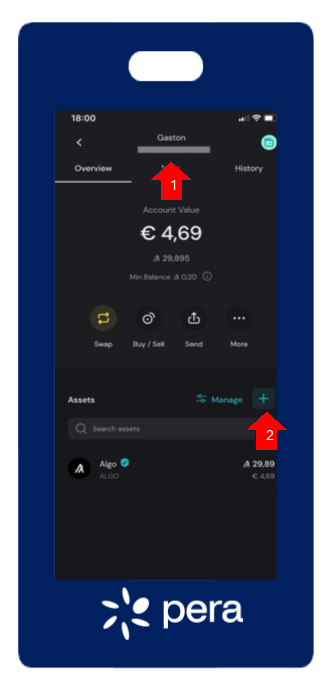
- Login to your Pera mobile app and select your Algorand account to be whitelisted with Quantoz
- Click on [ + ] symbol to Opt-in to new assets
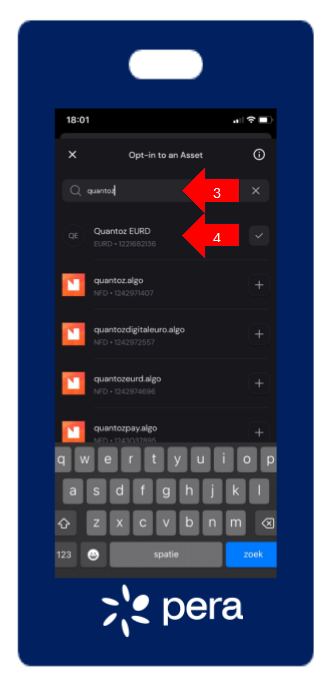
- Search for "quantoz". The correct EURD asset has Id 1221682136. Be aware others may try to create fake Quantoz assets!
- Select the Quantoz EURD asset to complete the Opt-in
STEP 2. Generate a security code with the Quantoz Payments App
- In the settings window, select the Security Code option.
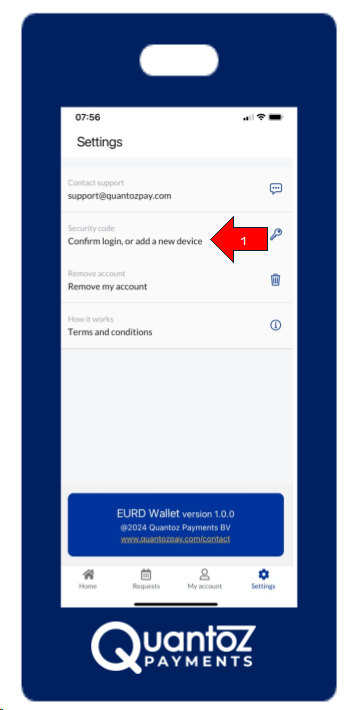
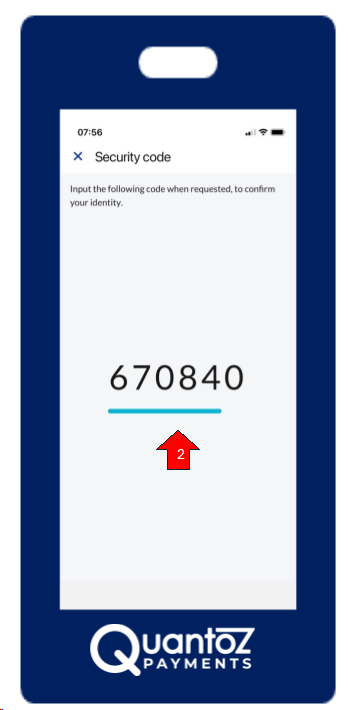
- Copy the security code. Note this code is only valid for one minute!
STEP 3. Create "self-transfer" transaction in Pera Algo Wallet
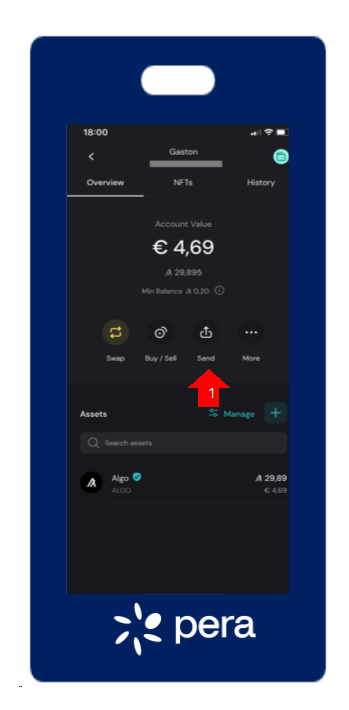
- From the account to be whitelisted, click [Send] in the Main screen of the Pera wallet
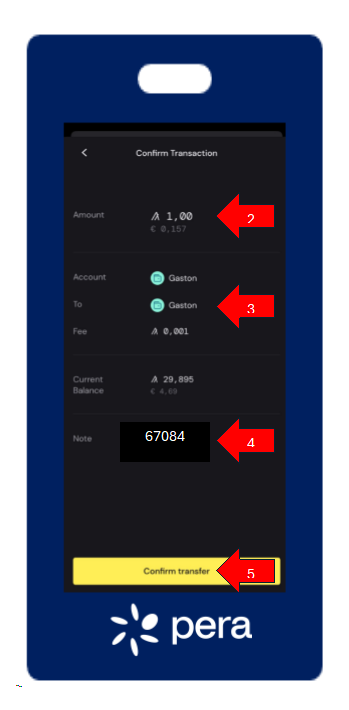
- Select Algo as asset, and use one Algo as amount
- Select your own account as account to transfer to
- Click "+ Add Note" to define the Note text, use the security code generated by the Quantoz Payments app
- Click [Confirm transfer] button to publish transaction to the blockchain
After verification your account will be unfrozen for EURD and you receive a confirmation email.